Google Business Profile Optimization: A 7-Step Checklist
Nov 26, 202614 min read
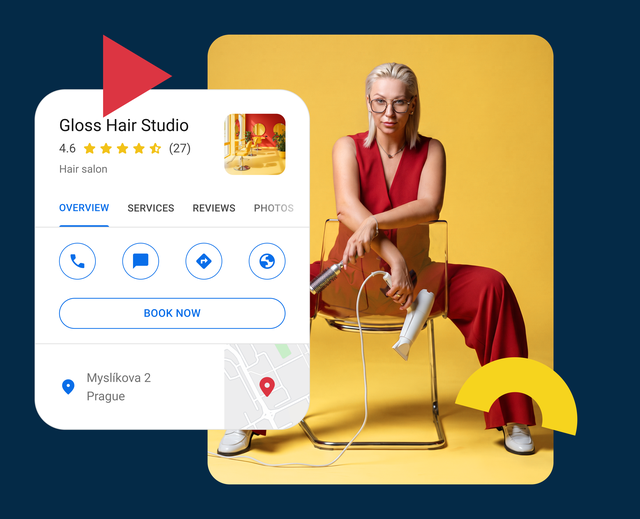
You set up your Google profile years ago, picked a category, added a phone number, and moved on. Meanwhile, the studio two streets away shows up first in Google Maps with dozens of photos, a full service list, and a button that lets people book on the spot. The difference usually isn't a marketing budget. It's a handful of fields, filled in properly.
Our local SEO guide explains why local search matters. This article is the hands-on part: a Google Business Profile optimization checklist that goes field by field, in the order that has the most impact. You'll also get a 15-minute monthly routine and a list of the edits that can get your profile suspended.
Whether you run a hair salon, a massage studio, a clinic, a gym, or a consultancy, the same fields decide whether a nearby client picks you or a competitor.
TL;DR: According to Google, clients are 70% more likely to visit a business with a complete Business Profile. Fill it in by impact: primary category, accurate hours, services with prices, then photos, posts and an appointment link. Spend 15 minutes a month keeping it current, and never stuff keywords into your business name.
What does Google Business Profile optimization actually change?
Google says clients are 70% more likely to visit and 50% more likely to consider purchasing from businesses with a complete Business Profile. Google Business Profile optimization means filling in every relevant field accurately, then keeping it current, so your profile matches what people search for.
If you're wondering how to rank in Google Maps, Google names three local ranking factors: relevance, distance, and prominence. You can't move your address closer to every searcher. You can control relevance and prominence: how well your categories and services match a search, and how active and well-reviewed your profile looks.
Google is also clear that nobody can pay for a better local ranking. The only way up is a more complete, more accurate profile.
Not every field carries the same weight.
In Whitespark's 2026 survey of 47 local search experts, the primary category ranked first out of 187 local ranking factors, while the frequency of Google posts ranked 148th. In short, some fields move your ranking, and others win the click once people see you. This checklist is ordered with that in mind.
Step 1: Get the basics right before anything else
Picture a new client searching for a physiotherapist on a Sunday evening. The name looks like an ad, the phone goes to another location's voicemail, and the website opens a Facebook page. Most people tap the next result.
Google's Business Profile guidelines say your name must match your real-world name, as it appears on your storefront, website, and stationery. Start with these fields:
- Business name. Exactly as it appears on your sign. No "best", no city name, no list of services.
- Address or service area. Salons, studios, and clinics show their address. Mobile businesses, such as a home-visit physio, hide it and set a service area of up to 20 cities or postal codes, within about two hours' drive.
- Phone number. A number that reaches this location directly and that you control.
- Website. A page that represents this location. Google doesn't want links that redirect to social media.
- Verification. Google says verified businesses are more likely to show up in search results, so finish it first.
- One profile per location. Duplicate profiles confuse Google and are a common reason for suspension.
If you don't have your own website, a booking website from Reservio gives this field a real page with your services, prices, and live availability.
Finish with three smaller fields: a plain-words business description without links, prices, or promotional claims, your opening date, and attributes such as wheelchair access, parking, or languages spoken. Tick only the attributes that are true.
Step 2: Choose your Google Business Profile categories
Whitespark's experts rank your primary category first among local ranking factors, and additional categories 8th. Google asks you to pick the category that describes what your business is, not everything it offers. Getting this one field right does more for your visibility than any other single change.
Primary vs. additional categories
Your primary category is the one thing you are. A barbershop is a "Barber shop", even if it also sells beard oil.
Additional categories cover real, separate services you actually offer. Google's own advice is to use the fewest categories needed to describe your core business.
For most service businesses, one primary plus two to four additional categories is plenty. Never add categories as keywords.
Tip: 💡 Search your main service in Google Maps and open the top three profiles. The primary category appears under each business name. If they all use one you hadn't considered, test it.
Category examples by business type
Type the start of a word and pick from Google's suggestions. These pairings work for common service businesses:
- Hair salon. Primary: Hair salon. Additional: Hair extension technician, if you offer extensions.
- Barbershop. Primary: Barber shop. Additional: Hair salon, only if you also cut women's hair.
- Beauty or nail studio. Primary: Beauty salon or Nail salon, whichever brings in most of your bookings. Additional: Eyelash salon, Waxing hair removal service.
- Massage and spa. Primary: Massage therapist or Day spa. Additional: Facial spa.
- Physiotherapy. Primary: Physical therapist. Additional: Sports massage therapist.
- Fitness. Primary: Personal trainer, Yoga studio, Pilates studio, or Gym, depending on what you are first.
- Tutoring and coaching. Primary: Tutoring service or Life coach.
Change your primary category rarely. Category edits can send your profile into review.
Step 3: List your Google Business Profile services, with prices
Whitespark's experts rank predefined services 22nd of 187 local ranking factors, ahead of most content signals. Google suggests services based on your category, and you can add custom services with a description and a price. A complete service list helps you appear for specific searches, not just your category.
Work through the service list in this order:
- Tick every suggested service that Google offers for your category and that you actually provide.
- Add custom services for the rest, using the words clients type: "balayage", "deep tissue massage", "sports injury assessment", "maths tutoring for teenagers".
- Write a one-line description for each service: what it is, how long it takes, and who it's for.
- Add a price, fixed or starting from, whenever you can keep it accurate. A visible price answers the "how much?" question before anyone has to call.
Keep one source of truth. The service names, durations, and prices on your Google profile should match the menu clients see when they book. If your booking website lists a "60-minute sports massage", your Google profile shouldn't call it "deep relaxation therapy". Matching names reassure the client that they've landed in the right place.

Show your full service menu online
Get your booking page
Step 4: Set hours that match how clients actually book
A client checks Google on a public holiday, sees “Open”, drives over, and finds a locked door. That one wrong field costs you the visit and probably a 1-star review.
Hours affect visibility too. Whitespark’s 2026 survey ranks “business is open at time of search” as the fifth most important local ranking factor. Google gives you three types of hours: main hours, special hours for holidays, and more hours for specific services.
Set up all three types like this:
- Main hours. The times clients can reach you, walk in, or get an answer.
- Special hours. Every public holiday, your vacation, and training days, entered in advance.
- More hours. Separate hours for things like walk-ins or online appointments, if your category offers them.
There’s one exception worth knowing. Google’s guidelines say that businesses that operate only by appointment shouldn’t list hours.
Most salons and studios don’t fall into this group, because staff are on site and clients can call or drop in, so list your staffed hours. A solo therapist or coach who works purely by appointment should follow the rule and rely on the appointment link to show when they’re free.
Step 5: Add the appointment link that turns Maps visitors into bookings
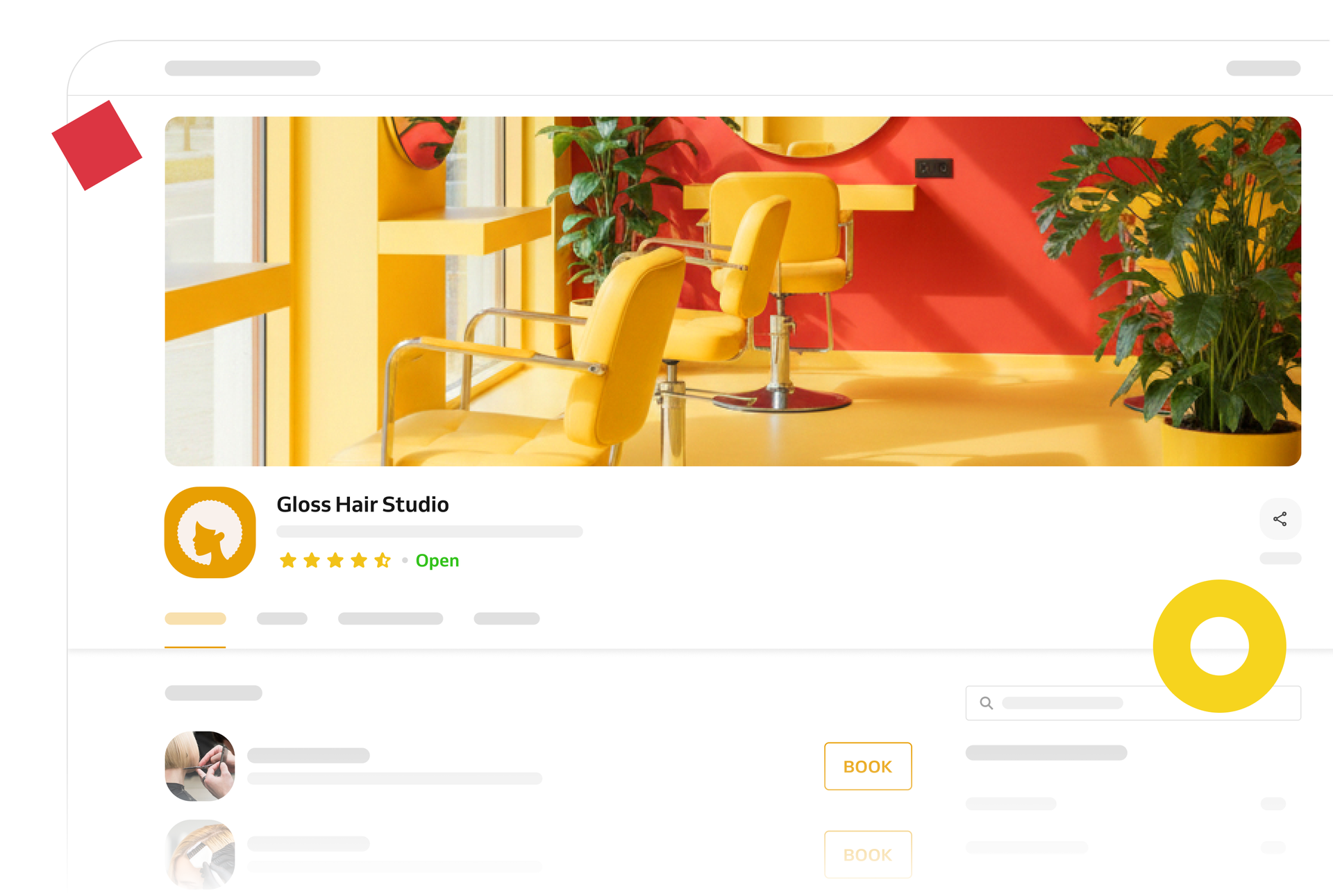
Google lets you add up to 10 booking links and mark one as preferred, which appears at the top of your profile as “Business preferred”. Everything above gets people to your profile. This field decides whether they book or keep scrolling.
Adding the link takes about two minutes:
- Open the booking section. In Google Search, select Booking. In Google Maps, select Edit profile, then the booking option.
- Add your link. Select Add link, paste your booking page URL, and save.
- Set a preferred link. If more than one link appears, choose yours as preferred so it sits on top.
- Test it on your phone. Search your business name in Google Maps, tap the button, and book a test appointment.
Watch for third-party links. Other platforms can add booking links to your profile automatically, and you can’t delete them in your settings. Google says you need to contact the provider, which must process opt-outs within 5 business days. Until then, your preferred link keeps your own page on top.
Reservio’s booking link is a URL you can paste straight into this field. It opens your online booking page with live availability, so clients can book outside opening hours and the evening searcher books tonight instead of planning to call tomorrow. For ready-made text to use in your description and posts, see our booking link checklist.
As Paula Ortiz, a psychologist who runs her own counselling practice, shared: “As a psychologist, I can’t always answer calls, so clients book anytime and receive reminders to reduce no-shows.”

Let Maps visitors book instantly
Create your booking link
Step 6: Google Business Profile photos that earn the click
Google's photo specification is JPG or PNG, 10 KB to 5 MB, ideally 720 by 720 pixels, in focus, well lit, and without heavy filters. Photo quality sits in the top 50 of 187 local factors for Whitespark's experts. Its bigger job is conversion: photos are how a stranger decides whether your place feels right.
Cover these photo types first:
- Logo and cover photo. The cover photo is the first image people see, so use your real space, not a stock image.
- Exterior. Your door and street view, so first-time clients recognize the building.
- Interior. The treatment room, the chair, the studio floor, the waiting area.
- Your work. Finished hairstyles, a training session in action, a tidy treatment table. Always ask clients for permission first.
- Your team. Friendly faces build trust before the first visit.
Match the photos to your business. A barber should show fades and beard work, a physiotherapist the treatment room and equipment, a tutor a calm, bright learning space.
Google recommends that you add photos regularly. Two to four new photos a month keep your profile looking current, and they're easier to keep up than 30 photos uploaded in one afternoon and then nothing for a year.
Step 7: Google Business Profile posts: what to publish and how often
Two physiotherapists show up side by side in Google Maps. One profile's latest update is from last spring. The other posted yesterday: "Two evening slots open this Thursday", with a button to book. Most people tap the second one.
That's the real job of posts. Google offers three post types, updates, offers, and events, and archives posts after six months unless they have a date range. Post frequency ranks only 148th of 187 local factors in Whitespark's survey, so treat posts as a shop window, not as a ranking trick.
These post ideas suit service businesses:
- New availability. "A cancellation slot opened for tomorrow morning", with a button that leads to your booking page.
- A new service or team member. Introduce them with a photo.
- A seasonal offer. Use the offer type with start and end dates, so it disappears on time.
- A workshop, open day, or class. Use the event type so the date shows clearly.
- A quick tip from your work. Aftercare advice, a stretch to do at home, a study habit that helps before exams.
Two to four posts a month are plenty for most service businesses. Add an action button to updates and events and point it to your booking page, so the post leads somewhere.
Posts must follow Google's content policies. Leave phone numbers out of the post text and avoid claims you can't back up, or the post will show as "Not approved" and never appear.
Your 15-minute monthly Google Business Profile routine
A profile doesn't stay optimized on its own. Recent reviews matter too: BrightLocal's 2026 survey found that 74% of consumers only care about reviews from the last three months. One short monthly check keeps your profile, your reviews, and your posts current.
Block 15 minutes on the first Monday of each month and go through this list:
- Check your profile on your phone (2 minutes). Search your business name in Google Maps, look for suggested edits from Google or the public, and tap your booking button.
- Reply to new reviews (3 minutes). Answer every review, positive or negative, and write each reply in your own words. Copy-paste replies read as if nobody is really listening.
- Upload two to four new photos (3 minutes). Recent work, a new team member, a seasonal detail in your space.
- Publish one post (3 minutes). New availability, a new service, or an upcoming offer.
- Set special hours for next month (2 minutes). Holidays, vacation, training days.
- Compare services and prices with your booking page (2 minutes). Fix anything that no longer matches.
If you want more reviews, our guide on how to get customers to leave a review covers when and how to ask.
Tip: 💡 Book the routine into your calendar as a recurring 15-minute appointment, the same way you'd book a client. It's much harder to skip.
Which edits can get your Google Business Profile suspended?
Google's guidelines state that adding unnecessary information to your business name could result in suspension of your Business Profile. A suspended profile can disappear from Google Maps or lock you out of managing it until you fix the problem, and most suspensions come from a short list of avoidable edits.
According to Google's guidelines, these are the edits to avoid:
- Keywords in the business name. "Anna's Hair Salon | Best Balayage Downtown" instead of "Anna's Hair Salon".
- An address that isn't a staffed location. P.O. boxes, virtual offices, and unstaffed rooms aren't allowed.
- Duplicate profiles for the same business at the same location.
- Categories you don't operate, or categories added purely as keywords.
- Links, prices, or promotions in the business description.
- Phone numbers or URLs that redirect people somewhere other than your business.
Even honest edits can trigger a review. Changing your name, address, or category may send the profile back for checks or re-verification.
Google says most edits are reviewed within 10 minutes, but some can take up to 30 days. Change one core field at a time, and only when it has changed in real life. Never edit these fields while you're waiting for a verification code.
If your profile does get suspended, don't create a new one. Fix the cause first, then submit an appeal through Google Business Profile support with proof, such as a photo of your signage or your business registration documents.
Fill it in once, then keep it fresh
Google Business Profile optimization isn't a single big project. Get the order right: basics, categories, services, hours, then the appointment link, photos, and posts. That's an afternoon of work, and 15 minutes a month keeps it all accurate.
The payoff is a profile that matches what nearby clients search for and gives them every reason to choose you. Avoid the shortcuts that get profiles suspended, especially keywords in your business name, and your visibility will grow steadily instead of disappearing overnight.
Then make sure the visit ends in a booking. With Reservio's booking link on your profile, anyone who finds you in Google Maps can book in a few taps, even at 10 pm. As Ondra and Jaroslav from Seladon Barbers Club put it, their clients "especially appreciate being able to book anytime and receive convenient SMS reminders."

Turn profile views into appointments
Try Reservio for free
Frequently asked questions
How do I optimize my Google Business Profile?
Fill in every relevant field accurately, starting with the ones that affect ranking most: your primary category, hours, and services. Then add photos, two to four posts a month, and an appointment link such as a booking link so visitors can book directly. Work in that order, because the first fields influence ranking and the later ones win the click. Review everything for 15 minutes once a month.
How many categories should I choose on Google Business Profile?
Choose one primary category that describes what your business is, plus only those additional categories that match services you really offer. For most service businesses, two to four additional categories are enough. Google advises using the fewest categories needed, and in Whitespark's 2026 survey the primary category ranked first of 187 local ranking factors. Avoid adding categories as keywords.
How often should I post on Google Business Profile?
Two to four posts a month is enough for most service businesses. Google archives posts after six months unless they have a date range, and posts influence whether people choose you more than where you rank. Share new availability, new services, seasonal offers, and events, and add an action button that leads straight to your online booking page.
Why did my Google Business Profile get suspended?
The most common reasons are keywords in the business name, an address that isn't a staffed location, duplicate profiles, and categories that don't match the business. Google's Business Profile guidelines list these rules. Fix the cause first, then appeal with proof such as signage photos or registration documents. Don't create a new profile, because a duplicate profile only makes the problem worse.
How do I rank higher on Google Maps?
Google ranks local results by relevance, distance, and prominence. You control relevance and prominence through a precise primary category, a complete service list, accurate hours, and a steady flow of recent reviews. Recency matters: 74% of consumers only care about reviews from the last three months. Our local SEO guide explains the wider strategy behind Google Maps rankings.
Do you like the article?